Managing Vault Objects
The NVIDIA CCluster allows you to generate and manage Vault objects such as Bearer Tokens, Certificates, Registry Credentials, Environment Variables, Hugging Face Tokens, and SSH Keys.
This guide will walk you through creating Bearer Tokens and other Vault objects you can use to configure or access NVIDIA CCluster services.
Vault bearer tokens protect your deployed inference endpoints — clients include them in requests to LLM Serving and General Inference URLs. For platform API automation (SDK, CLI, deployment management without browser login), use Service Accounts instead.
Step 1: Log in to the NVIDIA CCluster
You will need to log in to the NVIDIA CCluster to manage Vault objects. If you do not yet have access, contact your NVIDIA representative or your organization's designated support contact before proceeding.
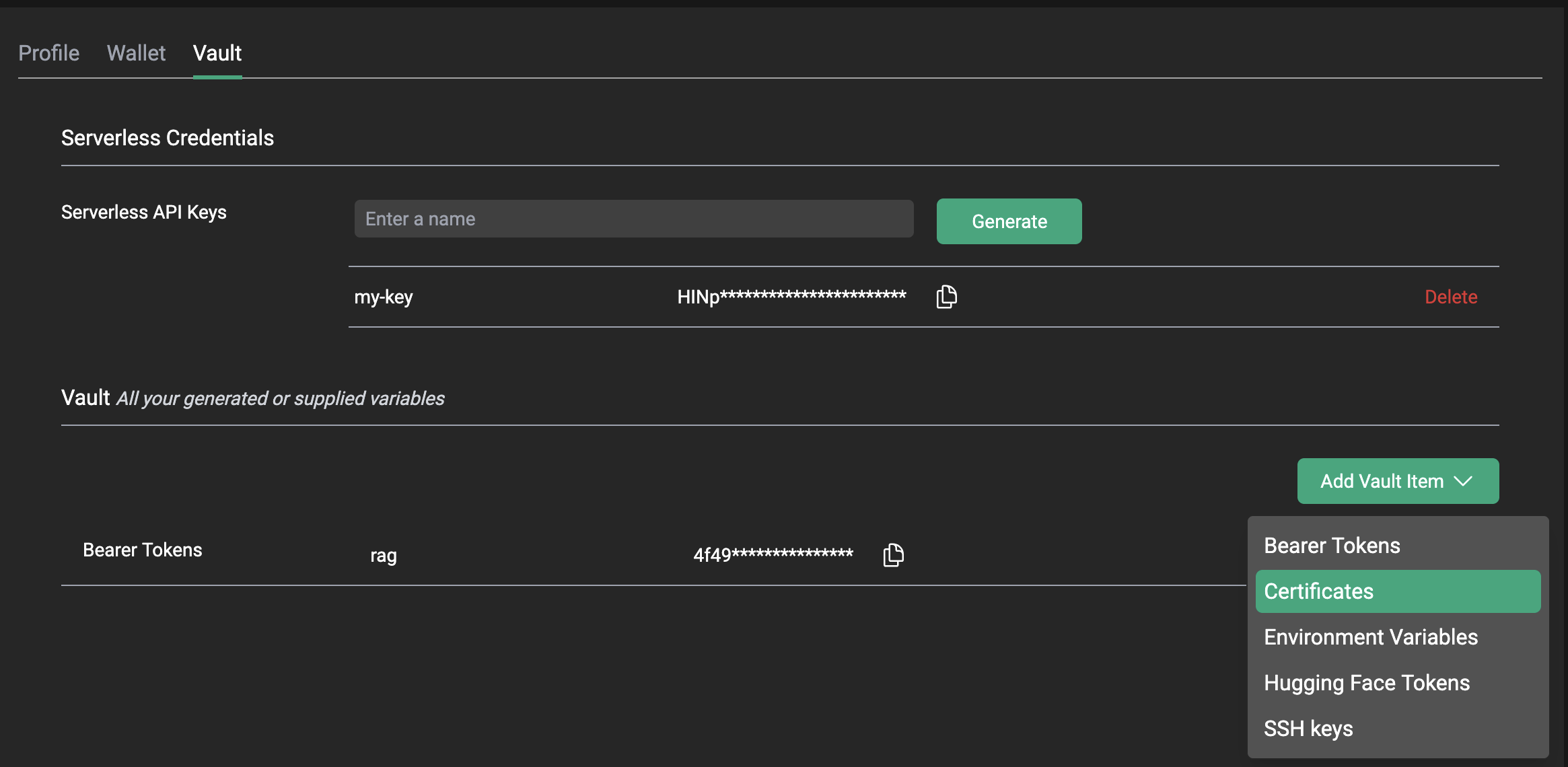
Once logged in, you will need to select Account from sidebar menu, and then click on the Vault tab from the Your Account window.
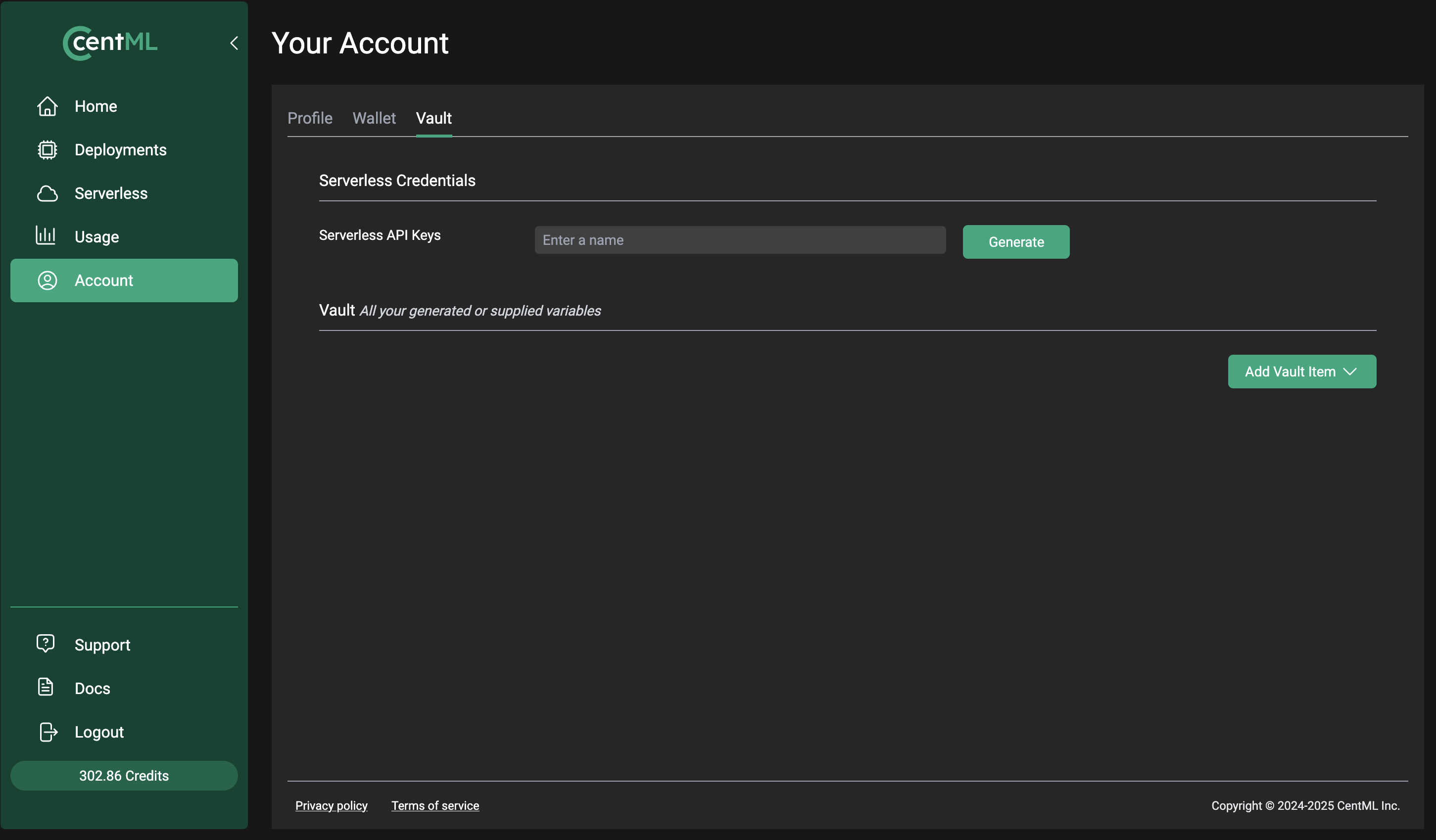
Once completed, move onto the second step below based on the type of Vault objects you are creating.
Step 2A: Creating bearer tokens
Bearer tokens can be used to access NVIDIA CCluster services.
To generate a bearer token, select green Add Vault Item. A dropdown menu will appear. From that menu, select the Bearer Tokens option.
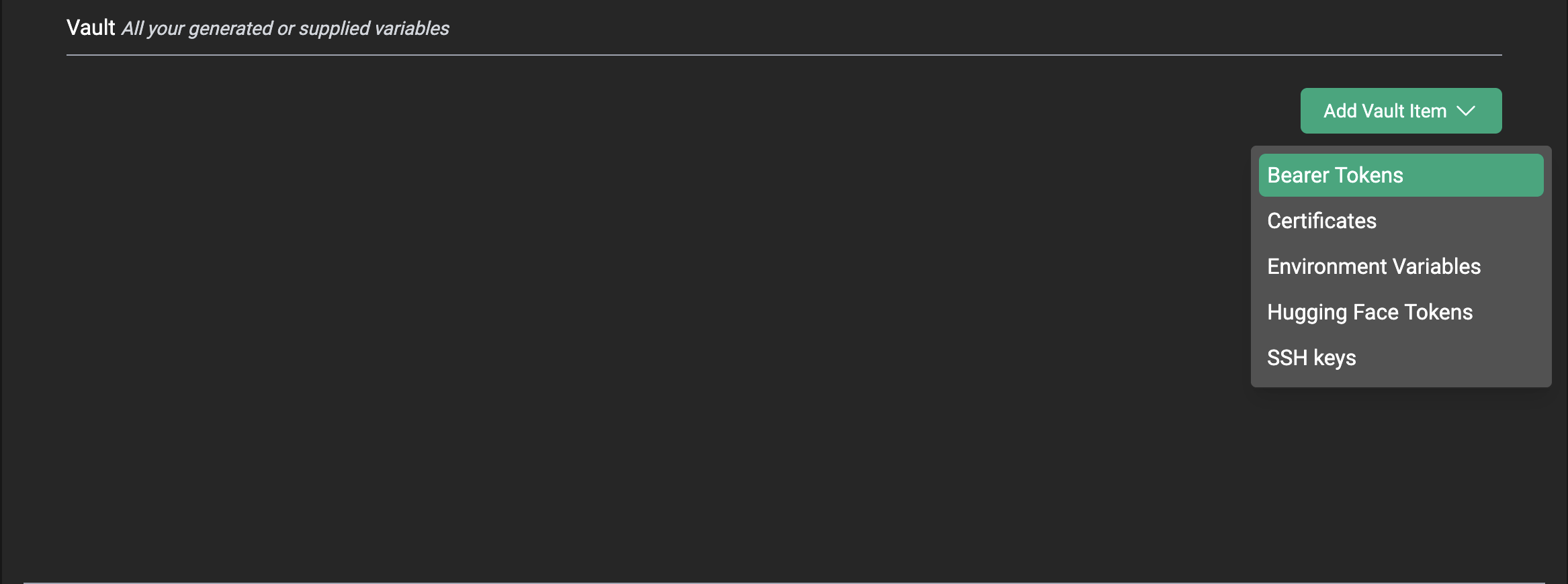
A windows will pop up name Add Bearer Token to Your Vault. From there, you can either name and automatically generate a token with the Generate new Bearer Token option or you can enter a previous token using the Use an existing Bearer Token option.
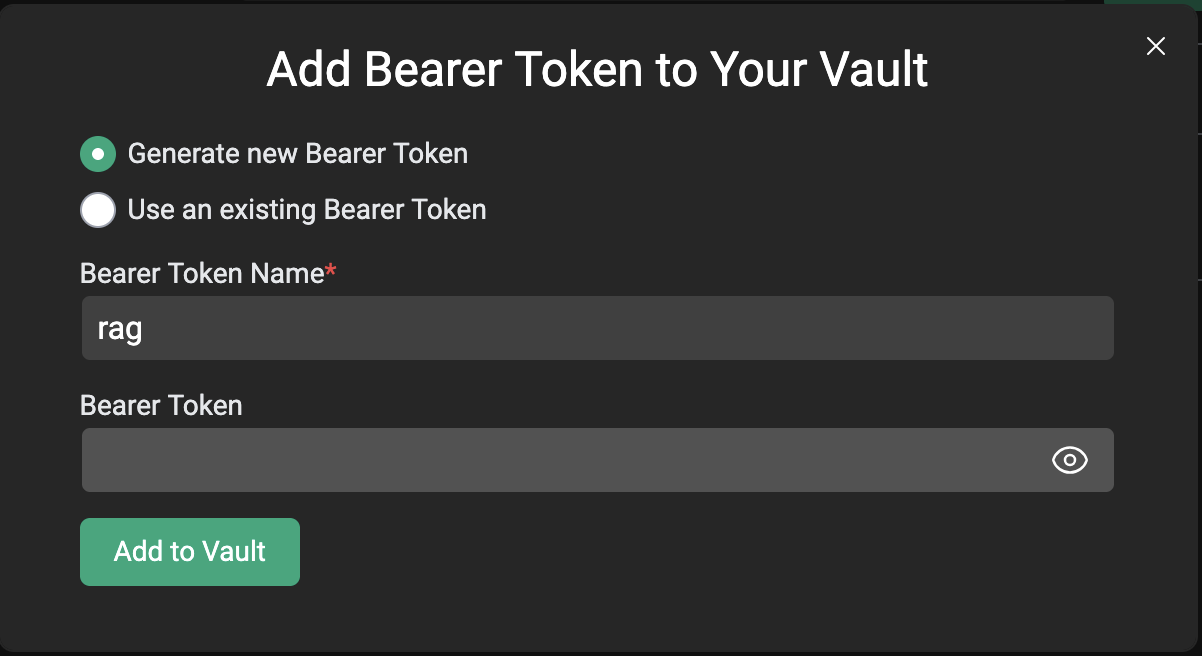
Once you either enter your token in the text box or opt into generating your token, click the green Add to Vault option and your Bearer Token should appear in your vault.

Step 2B: Adding certificates to your vault
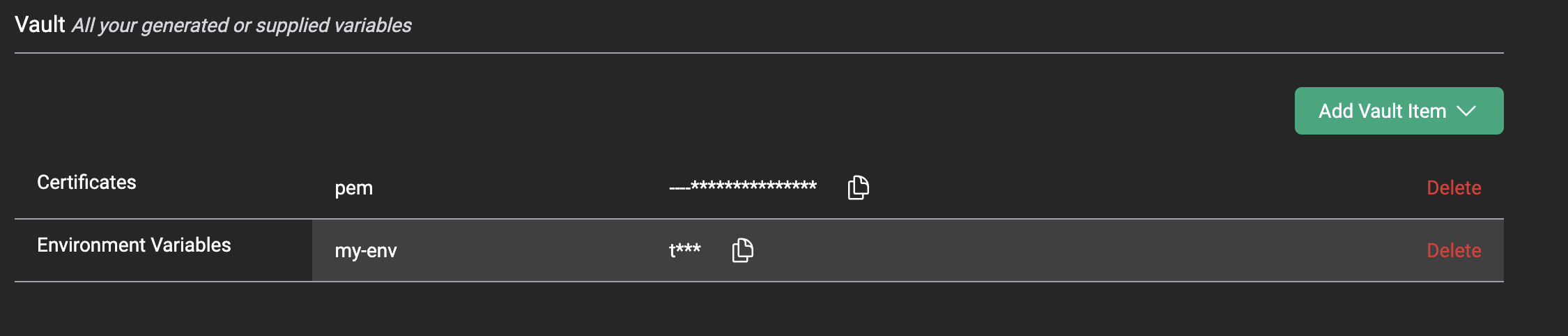
NVIDIA CCluster uses client certificates for mutual TLS (mTLS) You can generate or add public certificates for mTLS just like you can with Bearer Tokens. Once you generate the certificate, it will appear in the vault.
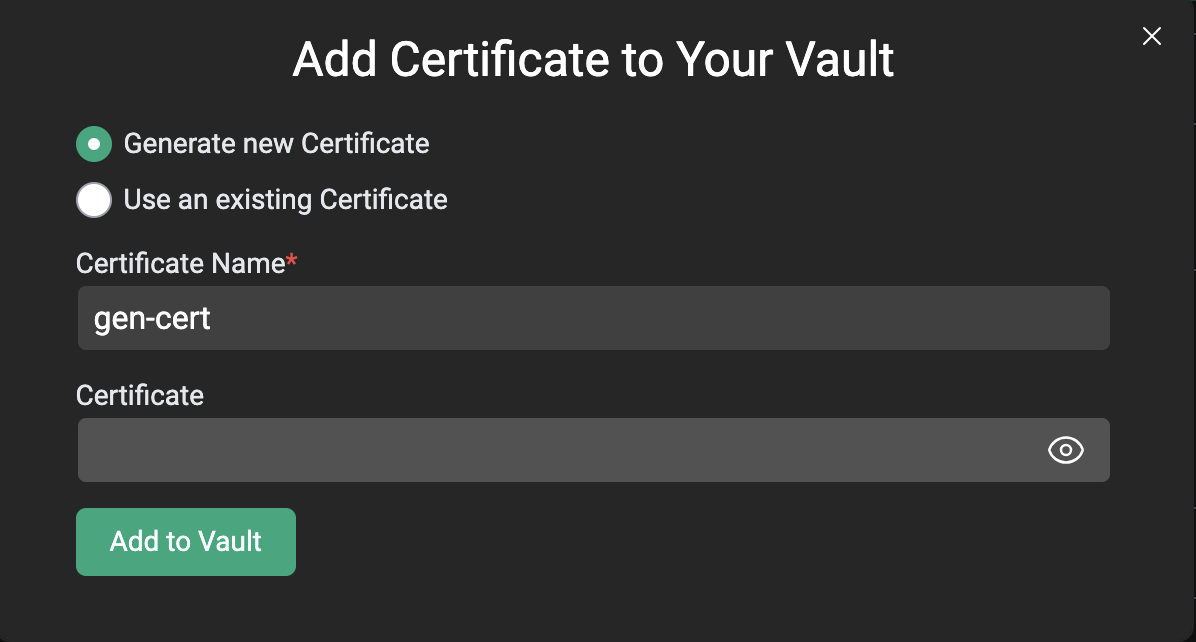
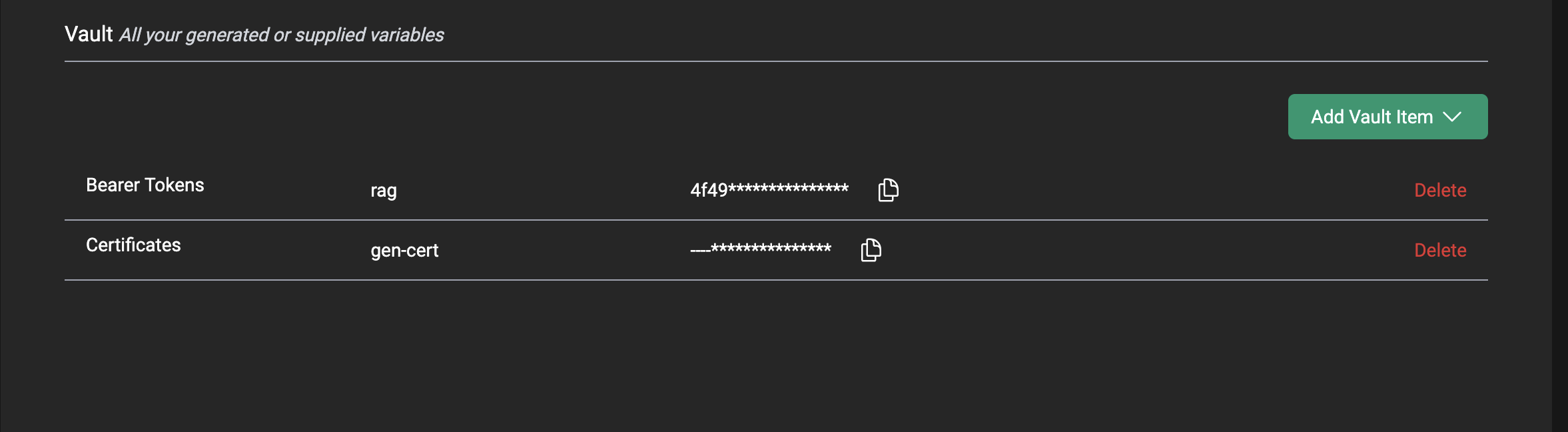
When generated, Vault Certificates download a .pem file to your local browser. That .pem file is named after the generated cert. You can then use that .pem file to access one of NVIDIA CCluster's secured endpoints as long as they are associated with the appropriate certificate and .pem pair.

Example usage
curl -X POST 'https://centml-private-2.fe178792.c-09.centml.com/openai/v1/chat/completions' \
  --cert gen-cert.pem \
  -H 'Accept: application/json' \
  -H 'Content-Type: application/json' \
  -d '{
    "messages": [
      {
        "role": "user",
        "content": "what is the meaning of life?"
      }
    ],
    "model": "meta-llama/Llama-3.2-3B-Instruct",
    "max_tokens": 512,
    "n": 1,
    "presence_penalty": 0,
    "stream": true,
    "stream_options": {
      "include_usage": true
    },
    "temperature": 0.7,
    "top_p": 1
  }'
Adding your own certificates
This section is currently under construction as we work to improve the UX around adding certificates to endpoints on the NVIDIA CCluster. Please check back soon!
Step 2C: Adding registry credentials
Registry credentials allow the NVIDIA CCluster to pull container images from private registries when creating General Inference or Compute deployments.
To add registry credentials, select the green Add Vault Item button and choose Registry Credentials from the dropdown. Enter a name, along with the registry username and password (or access token). The credentials are stored securely in your Vault and can be selected during deployment configuration.
Supported registries include Docker Hub, Amazon ECR, Google Artifact Registry, Azure Container Registry, and any Docker-compatible private registry. CCluster automatically detects the registry from the image URL at deployment time.
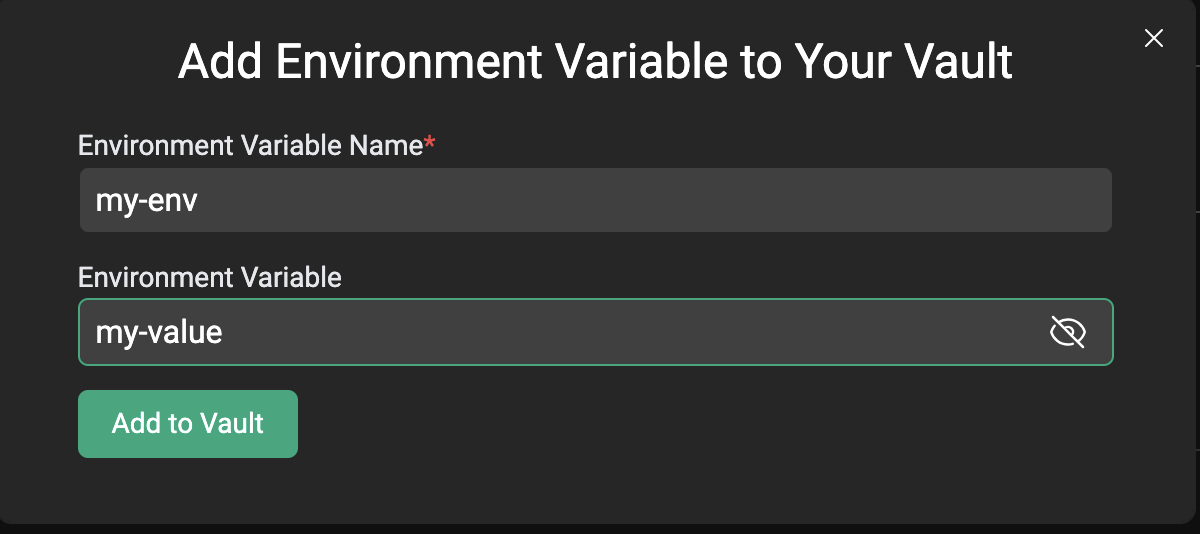
Step 2D: Adding environment variables